Router restart and firmware checks when home Wi-Fi slows suddenly
Starting With a Simple Router Restart
Home Wi-Fi that suddenly slows down often points to a router that has been running continuously for days or even weeks. During that time, the device can accumulate memory leaks, temporary glitches, or connection conflicts that interfere with smooth data flow. Restarting the router clears out these temporary issues and forces the device to establish a clean connection with the internet service provider again. Many slowdowns recover from this single step, so it is a practical starting point before assuming the problem is more technical.
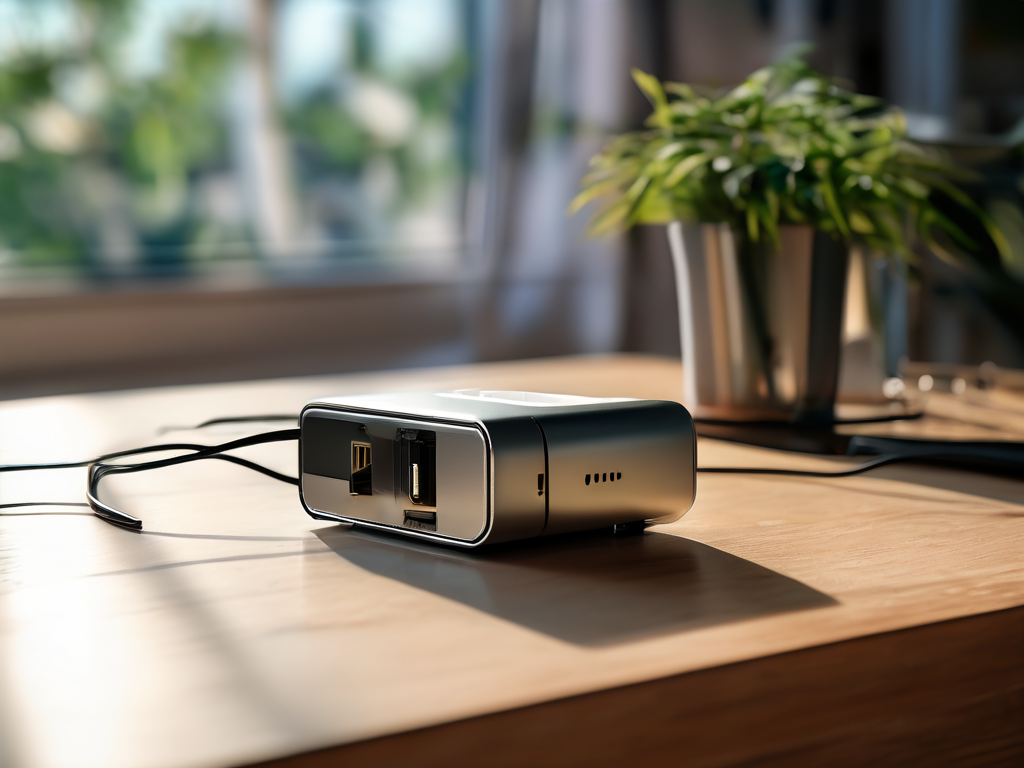
Properly unplug the power cable from the router before waiting at least thirty seconds. After that delay, plug the power back in and avoid using the reset button, because that pinhole button usually erases configuration settings entirely and requires reconfigure experience to recover. When the router lights return to a stable and consistent state, run a speed test on a device that was suffering the slowdown before. Only thirty seconds give the regular speed back, the issue resolved with that simple restart.
Checking the Router Firmware Version First
When a restart does not fix the slowdown, the router may be running outdated firmware that causes performance drops, security gaps, or compatibility issues with newer devices. Router manufacturers release firmware updates to fix known bugs, improve speed handling, and patch vulnerabilities. Checking the firmware version should happen before buying new equipment or calling support, because a free update can restore normal speeds. Log into the router administration page by typing the router IP address into a browser.
The address is often 192.168.0.1, 192.168.1.1, or a label on the router itself. Look for a section labeled Firmware Update, System Update, or Router Upgrade. Compare the current version shown on the page with the latest version listed on the manufacturer support site. A newer version exists, download and install it through the router interface, and do not interrupt power during the update.
Comparing Common Slowdown Causes and Quick Fixes
After the restart and firmware check, some slowdowns persist because the cause is not a single glitch but a combination of conditions. Interference from neighboring Wi-Fi networks, outdated device drivers, or a crowded channel can all reduce speed even when the router itself is working. The most common causes after a restart and firmware update, along with what to check and what action to take next, are listed below.
Each row in the table points to a visible check that does not require guesswork. A Wi-Fi analyzer app shows which channels are crowded, device settings reveal the driver version, and the task manager shows active network usage. After applying the fix from the table, test the speed again on the same device and location to see whether the change helped.
| Possible Cause | What to Check | Next Action |
|---|---|---|
| Wi-Fi channel congestion | Neighboring networks on the same channel using a Wi-Fi analyzer app | Switch the router to a less crowded channel, usually 1, 6, or 11 for 2.4 GHz |
| Outdated device driver | Network adapter driver version in device settings on the slow computer | Download and install the latest driver from the device manufacturer support page |
| Background downloads or uploads | Open task manager or activity monitor on each connected device | Pause large downloads, cloud syncs, or streaming on idle devices |
Confirming the Router Placement and Connection Quality
Physical placement and cable quality can cause slowdowns that software changes cannot fix. A router placed inside a cabinet, behind a TV, or near metal objects can lose signal strength even if the firmware is updated and the channel is clear. Move the router to an open, elevated location away from walls and large appliances to see whether the speed improves. For desktop computers or streaming devices, a wired Ethernet connection avoids Wi-Fi interference entirely and gives a reliable speed test result.
Check the cable connecting the router to the wall jack or modem. A loose, damaged, or low-quality Ethernet cable can reduce speed to a fraction of the plan rate. Replace any cable that feels loose, shows bent pins, or has visible wear. The slowdown continues after placement and cable checks, contact the internet service provider to test the signal coming into the home, because the issue may be outside the router and devices.